Droid Cam Link: Remote Monitor
Hefei OneSevenRead Technology Co., LtdHouse & Home
0.00.00 Reviews
- Version
- 1.3.0
- Installs
- 10.00K
- Age Rating
- Everyone
Screenshots
Our Review of Droid Cam Link: Remote Monitor
 Analysis by Appyee
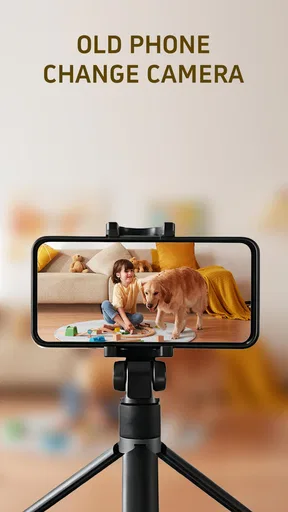
I tested Droid Cam Link: Remote Monitor as a simple way to give an older phone a second job around the home. Its basic idea is easy to understand: instead of leaving an unused handset in a drawer, you can turn it into a camera and view what it sees from another device. That makes it relevant to home monitoring, checking on a sleeping child, watching a pet for a short time, or keeping an eye on a doorway while you are working elsewhere.
What I like most is that the concept does not require buying a separate camera before you know whether this kind of setup fits your routine. The app belongs to the House & Home category, is free to install, and is aimed at Everyone. It comes from Hefei OneSevenRead Technology Co., Ltd and has passed the early stage of adoption with over ten thousand installs. The current release is version 1.3.0, and it runs on Android seven or later.
That simplicity also sets the right expectations. I see it as a practical temporary monitor rather than a replacement for a dedicated security system. Your result depends heavily on the condition of the spare phone, its camera, its battery, the network in your home, and where you can safely position it. For a quick, low-cost experiment, it is appealing. For continuous security, emergency protection, or a setup that must work without supervision, I would choose a purpose-built alternative.
How the app feels to read and navigate
I look at this section through the practical experience of finding the right control without having to study a complicated system. A clear, repeatable setup can make a two-phone arrangement easier to share with someone else at home, especially when each device has a fixed role. Next, I turn to how that routine can be adapted to different abilities and everyday circumstances.
A clear idea helps more than a crowded control panel
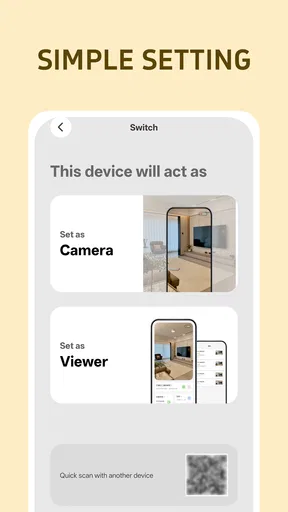
The strongest accessibility advantage here is conceptual clarity. A person does not need to learn a complicated home-automation system to understand the intended workflow: one phone acts as the camera, and another device is used to view it. That makes the app easier to explain to a family member who is not comfortable with technology. I could describe the job in ordinary language rather than introducing a long list of unfamiliar settings.
That matters for readability as much as for navigation. When an app has one central purpose, the user can focus on the immediate task instead of scanning through unrelated tools. I would still recommend setting it up in a calm room before relying on it, especially if the person using it has difficulty reading small interface text, distinguishing similar controls, or remembering a sequence of setup steps.
The short description, “Droid Cam Link,” gives the product a compact identity, while the longer store summary explains the old-phone camera idea. Together, those descriptions make the purpose understandable before installation. I appreciate that because a user with limited time or attention can decide quickly whether the app is relevant.
Useful preparation for people who need a slower workflow
If you are helping someone with reduced vision, cognitive fatigue, or limited confidence with phones, I would prepare both devices before opening the app. Charge the spare phone, remove unnecessary items from the viewing area, and place the two handsets close together during the first connection attempt. Labeling the camera phone with a small note such as “camera” and the viewing phone with “screen” can prevent an avoidable mix-up.
I also found that a fixed routine is more useful than trying to memorize every tap. Start the camera phone, check that its lens is unobstructed, open the viewing side, and confirm the picture before placing the device. This is a small but important distinction: the app may make the connection straightforward, but it cannot compensate for a phone pointed at a wall, a covered lens, or a handset that has gone to sleep.
People who depend on larger text, stronger contrast, screen magnification, or a screen reader should test those tools with the app before committing to a daily setup. Android’s own accessibility options may improve the experience, but the practical result will depend on how the app’s controls and labels interact with those system features. I would not assume that every visual element is equally easy to identify without trying it on the specific phone.
Where the old phone makes a difference
Using an older phone is both the app’s cleverest feature and its main variable. A newer spare handset may offer a clearer image, a healthier battery, and smoother handling. An aging phone may still be perfectly suitable for a short indoor check, but it could become frustrating if the battery drains quickly, the camera struggles in dim light, or the device becomes slow while running the camera view.
This is one of the less obvious trade-offs. The app lowers the cost of trying a home camera, but it does not turn every old phone into a reliable modern security device. Before installation, I would inspect the camera lens, test the charging cable, and see whether the phone can remain awake for the length of time you need. A phone that is fine for occasional monitoring may be a poor choice for an all-day position near a crib, entrance, or pet area.
Access across abilities and everyday situations
Accessibility here depends not just on the interface but on where the phones sit, how they are supported, and who can maintain the setup. I find it useful to think about those details before choosing a room, because a small change in placement can reduce reaching, improve visibility, and make the camera phone less likely to be disturbed.
Motor considerations: reduce the number of physical adjustments
For users with limited hand movement or tremors, the best setup is one that minimizes repeated handling. Once the camera phone is positioned, it should not need to be moved every time you want to check the room. I would use a stable stand or another secure support rather than balancing the handset against books or furniture. That reduces the chance of a small accidental touch changing the view or knocking the phone down.
A useful workflow is to complete the connection while seated at a table, where both phones are easy to reach. After confirming the image, move only the camera device to its final location and keep the viewing device in the place where it will normally be used. This separates the physically demanding setup stage from the much simpler checking stage.
The app is a better fit for occasional viewing than for users who need dependable hands-free control throughout the day. If someone cannot safely reposition a phone, reconnect it, or retrieve it after a battery problem, another person may need to handle setup and maintenance. That is not a criticism of the idea so much as a reminder that a spare phone remains a physical object with a charging port, camera angle, and power button.
Sensory needs: plan around sound, light, and distance
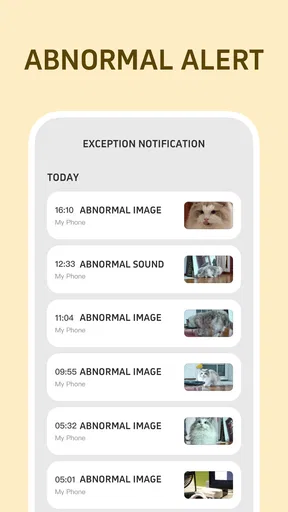
Different users will depend on different parts of the monitoring experience. Someone with reduced hearing may not benefit from an arrangement that assumes an audible alert or spoken confirmation. Someone with low vision may need the viewing phone close by, with display enlargement or stronger system contrast enabled. Someone sensitive to bright screens may prefer to keep the viewing device at a lower brightness while leaving the camera phone positioned out of direct sight.
I would treat the live image as the central information source and avoid assuming that it will solve every sensory need. The quality of that image depends on the old phone’s camera and the available light. In a dim hallway, a person with limited vision may find the result less useful than expected, even if the connection itself works. Adding a small lamp can improve practical visibility, but it may also change the room’s atmosphere or disturb a sleeping child, so placement needs thought.
For a person with memory difficulties, a visible reminder beside the viewing phone can be more helpful than a complicated written guide. Write down which handset stays in the monitored room, which one is used for viewing, and where each charger belongs. This turns a potentially confusing two-device arrangement into a repeatable household routine.
A realistic home scenario
Imagine working from a kitchen table while a dog rests in a living room. I would place the spare phone on a stable surface with its camera aimed at the dog’s usual bed, connect it before starting work, and keep the viewing phone nearby. A quick glance could show whether the dog is settled without repeatedly walking across the home.
This scenario shows where the app is genuinely convenient. It can save steps, reuse hardware, and provide reassurance during a short period. It also shows the limits clearly: the camera phone must remain charged, the view can be blocked, and the system should not be treated as a substitute for physically checking an animal that may be ill, distressed, or in danger.
Situational access is about context, not only disability
Accessibility changes with the situation. A parent holding a sleeping baby may have only one free hand. An older adult may be checking a room from a chair. A person recovering from an injury may not want to walk repeatedly between rooms. In each case, the value comes from reducing unnecessary movement, provided the initial setup has already been done safely.
The same arrangement can be less suitable in a busy household. If several people move the camera phone, unplug its charger, or close the viewing screen, the routine becomes unreliable. I would agree on one fixed position and one person responsible for charging it. That simple household rule can matter more than any extra setting because it protects the consistency of the system.
Privacy and placement deserve deliberate attention
A phone used as a home camera should be positioned with care. I would point it only at the area that needs checking and avoid placing it where it captures private conversations, changing areas, or spaces belonging to other people without their knowledge. A small field of view is often better than trying to cover an entire room.
This is another non-obvious advantage of reusing an old phone: you can choose a handset that is no longer used for personal messages or daily work. That separation may make the monitoring arrangement easier to understand and less disruptive. Even so, I would not leave the device unattended in a public or shared location simply because it is an old phone.
What may still create barriers
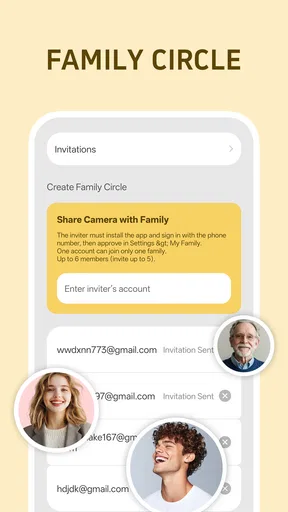
The first barrier is the dependence on two devices. A person who already finds phone pairing confusing may find the camera-and-viewer relationship harder than using a dedicated monitor with a single designed workflow. Family assistance can solve that, but it means the app is not equally independent for every user.
The second barrier is hardware variability. An old phone may have a small display, weak battery, worn charging connector, or camera that performs poorly indoors. These issues are especially important for users who cannot easily inspect the screen or adjust the device. I would test the complete arrangement for a normal period of use rather than judging it from a successful first connection.
The third barrier is physical security. A phone on a shelf can be knocked over by a pet, pulled down by a child, or shifted by cleaning. Anyone who needs a consistent camera angle should use a stable support and keep cables away from paths where they can snag. The app can provide the link between devices, but it cannot make an unsafe placement safe.
There is also a financial point to consider. The app itself is free, but it includes optional in-app purchases priced from one dollar and ninety-nine cents to twenty-nine dollars and ninety-nine cents per item. I would begin with the basic experience and decide whether the arrangement is useful before spending money. That is particularly sensible for households choosing the app because they want to avoid buying dedicated hardware.
When another option is better
I would choose a dedicated indoor camera when continuous operation, stronger mounting, specialized alerts, or a more polished household experience matters more than reusing an old phone. I would also prefer a purpose-built device for situations where a failure could have serious consequences. Droid Cam Link: Remote Monitor is better suited to low-risk observation, temporary monitoring, and testing the idea of a home camera with equipment you already own.
It is also not the ideal choice for someone who wants a single-device experience. The need to prepare a spare handset and a viewing handset adds a layer of coordination. A simple baby monitor or pet camera may be easier for a user who wants dedicated controls and fewer setup decisions, even if that means purchasing additional hardware.
My inclusive verdict
I came away viewing this as a practical bridge between “I have an unused phone” and “I might benefit from a camera in another room.” Its accessible quality comes less from a long list of specialized tools and more from a focused purpose, a familiar device format, and the ability to adapt the setup to different rooms and routines.
The best experience comes from simplifying the surroundings, not just installing the app. Use a healthy spare phone, choose a stable position, keep the viewing device within comfortable reach, and create a repeatable routine for charging and checking the connection. Those steps make the arrangement more usable for people with motor, visual, hearing, or memory-related needs.
I recommend it to someone who wants a free starting point for short-term home monitoring and already has a suitable Android phone available. I would skip it for high-stakes security, unattended long-term surveillance, or anyone who needs a dedicated, highly predictable device. As a House & Home app, it offers a sensible way to repurpose hardware, but its real value depends on whether the surrounding workflow is safe and manageable for the person using it.
For my own use, I would keep it for checking a room, a pet, or a temporary household situation rather than treating it as permanent infrastructure. That honest limitation is also what makes the app appealing: it does not require a major purchase to explore a useful idea, and it can be inclusive when the setup is designed around the user’s abilities and the realities of the home.
Verdict
Strengths of Droid Cam Link: Remote Monitor
- Turns an old phone into a practical remote monitoring camera.
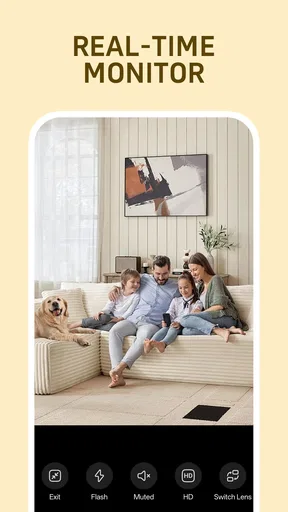
- Live video can be viewed remotely from another device.
- Useful for checking pets, rooms, children, or office spaces.
- Saves money compared with buying a dedicated security camera.
- Simple setup makes it accessible for less technical users.
Limitations of Droid Cam Link: Remote Monitor
- Both devices need stable internet for a reliable remote feed.
- Continuous camera use can drain the phone battery quickly.
- Video quality depends heavily on the phone’s camera and network.
- Privacy risks require careful account and device security settings.
- Some advanced monitoring features may require in-app purchases.
Similar Picks in This Category
View All
Universal TV Remote Control
CodeMatics Media Solutions3.9

AlfredCamera Home Security app
Alfred Systems Inc.4.7

Planner 5D: AI Home Design
Planner 5D4.5

Universal Tv Remote-Cast to TV
One Music Player4.1

Zillow: Homes for Sale & Rent
Zillow Group4.8

99acres Buy/Rent/Sell Property
infoedge.com4.3
Frequently Asked Questions
What is Droid Cam Link: Remote Monitor used for?
Droid Cam Link: Remote Monitor is designed to turn a compatible smartphone or tablet into a remotely accessible camera or monitoring device. After installation and setup, users can view the camera feed from another device, making it useful for checking a room, watching pets, monitoring children, or using an old phone as a basic security camera. Its actual features may depend on the device, operating system, and connection method.
How do I set up Droid Cam Link: Remote Monitor on my devices?
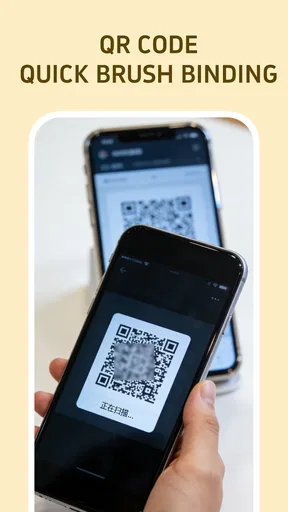
Typically, you need to install the application on the phone that will act as the camera and configure the viewing device separately, depending on the app’s supported connection process. Both devices may need camera, microphone, network, and notification permissions. During testing, careful attention to pairing instructions is important because remote monitoring can fail if the devices are on different networks, background activity is restricted, or the camera phone enters battery-saving mode.
Does Droid Cam Link: Remote Monitor work without an internet connection?
The app may work over a local Wi-Fi network, but this is different from accessing the camera remotely through the internet. Local monitoring is generally more responsive and can continue when both devices share the same network, while viewing from outside the home may require additional online connectivity or supported remote-access features. Before downloading, check the current store description and privacy information to confirm exactly which connection modes are available.
Is Droid Cam Link: Remote Monitor safe and private to use?
Because the application can involve live camera and possibly microphone access, privacy should be treated as a priority. Only grant permissions that are necessary, use a trusted network, keep the app and operating system updated, and avoid placing the monitoring phone where private conversations or sensitive areas are captured unnecessarily. Users should also review the app’s privacy policy, account requirements, data handling practices, and any security options such as password protection.
What limitations should I expect when using Droid Cam Link: Remote Monitor?
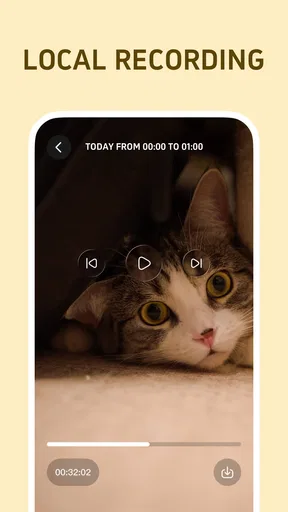
Performance depends heavily on the phone being used as the camera. Continuous video can consume battery, generate heat, use significant mobile or Wi-Fi data, and stop if the operating system limits background activity. Image quality, delay, audio availability, night visibility, recording options, and the number of supported viewers may also vary. For reliable long-term monitoring, keep the device connected to power and test the connection before relying on it.
